 >
>
Welcome to the Hamilton County Probate Court
Judge Ralph Winkler and the Hamilton County Probate Court employees are committed to providing excellent service through courtesy, dedication and professionalism while following all laws of the United States of America and State of Ohio. The Court ensures prompt and equal access to all Court records and services by using the latest technology to consistently improve accuracy and efficiency in our office, while increasing the times and locations that citizens can access our services. We strive to protect the rights and safety of all people, and those the Court have been entrusted to protect, with prompt and just resolution to all legal matters brought before the Court. The Court provides over 80 unique services, some of them include assisting in the distribution of assets from generation to generation, providing guardianship for residents who cannot care for themselves and growing families through marriage and adoptions.
Forms
The "Forms" section of this website allows you to find the forms you need to complete and file with our office. We anticipate adding more forms as they become available. Select your service below by clicking on the drop down menu.
- ADOPTIONS
- BIRTH CORRECTION
- BIRTH REGISTRATION
- CIVIL COMMITMENT
- CIVIL PROCEEDINGS
- CONSERVATORSHIP
- CUSTODIAL ACCOUNTS
- DELIVERY OF MINOR FUNDS
- DECLARATION OF PATERNITY
- DISINTERMENT
- ESTATE ADMINISTRATION
- GUARDIANSHIP
- MINOR SETTLEMENT
- ADULT WARD SETTLEMENT
- NAME CHANGE
- TRUSTS
- WILL DEPOSIT
- INVOLUNTARY TREATMENT FOR ALCOHOL & DRUGS ;
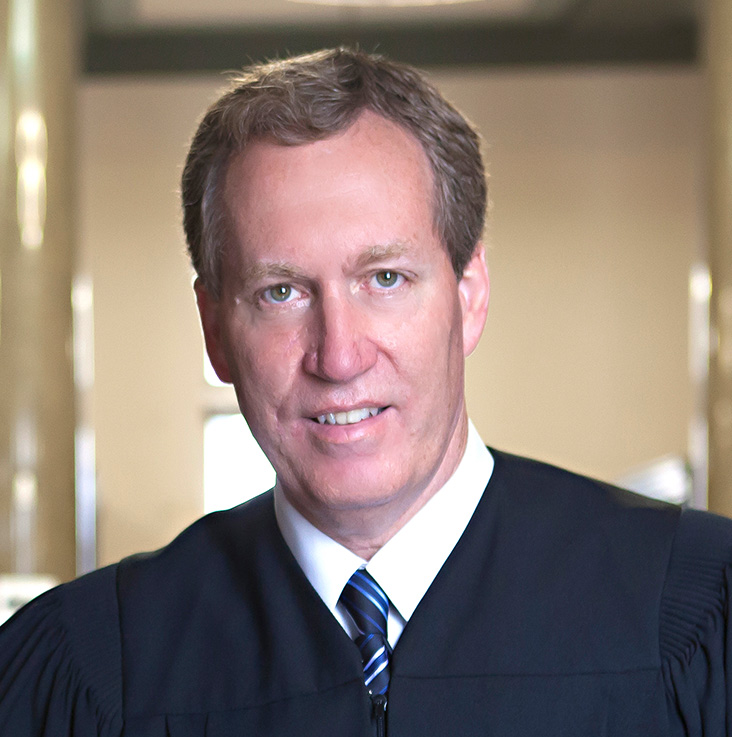
THE HONORABLE JUDGE RALPH E. WINKLER
Judge Ralph Winkler is a lifelong resident of Cincinnati, Ohio. He is married to Teresa Winkler, has three daughters, and eight grandchildren. He has a strong faith in God and is very active in his church. He has been coaching sports since he was 21 years old.
As a Judge since 1999, he has presided over 130,000+ cases, giving him extensive experience in a wide variety of legal matters. He feels blessed to hold a job he loves and looks forward to what each new day brings.
Over the years, he has served as an adjunct professor at the University of Cincinnati, College of Law, is currently appointed to the Supreme Court Committee on Ethics and Inclusion and is on the Melanoma Know More Board of Directors.
In 1979, he graduated from high school, and then attended the University of Cincinnati graduating in 1983 with a Bachelor of Business Administration degree. He attended Chase Law School at Northern Kentucky University graduating in 1987 where he earned his Juris Doctorate. While in law school, Judge Winkler worked full time as a law clerk in the Hamilton County Court of Common Pleas. After passing the Bar in 1987, he worked in the private practice of law and as an assistant prosecutor until April of 1999 when the Governor appointed him a Hamilton County Municipal Court Judge.
In 2004, Judge Winkler received his diploma in Judicial Skills from the American Academy of Judicial Education. In 2008, was named Trial Judge of the Year by the Hamilton County Trial Lawyers Association. He was elected to the Hamilton County Court of Common Pleas, and in 2010 was re-elected for a second term. In 2015, he was awarded the Golden Gavel Award for his faithful service as a Common Pleas Judge by the Ohio Common Pleas Judges Association.
After winning the election for Hamilton County Probate Court Judge in November 2014 and re-elected in 2020, Judge Winkler has served the public by hearing cases involving adoptions, mental health, guardianships, estates and numerous other probate matters.
Judge Winkler is a member of the Ohio Association of Probate Judges, the National College of Probate Judges, the American Judges Association, the Ohio Judicial College, the Cincinnati Bar Association, the Ohio State Bar Association, and the Ohio Guardianship Association.
What's happening at the Probate Court?
See what we’ve been talking about on our Facebook page.
 Follow us for more!